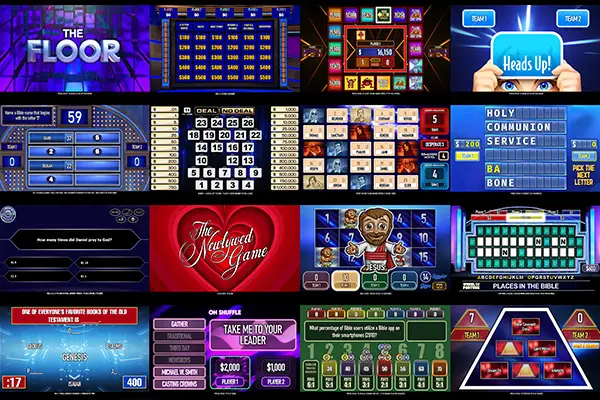
PPT Games is a free library of professionally designed PowerPoint game shows, icebreakers, Bible games, and team activities created to help churches, schools, camps, and event hosts bring people together through laughter, conversation, and shared experiences.
Get In Touch
Follow Us:
Instructions
Setup & Installation Guide
Everything you need to download, install, and set up your PPT Games library.
Frequently Asked Questions
Getting Started
PPT Games require a Windows PC with a full desktop version of Microsoft PowerPoint (Office 2019, Office 2021, or Microsoft 365). The games are designed specifically for PowerPoint and will not function properly in PowerPoint Online.
No. PPT Games are engineered specifically for Windows PC and Microsoft PowerPoint. Mac, Chromebook, iPad, tablets, and phones are not supported.
Yes. Every PPT Game in the library is completely free to download, use, modify, and share within your organization.
Absolutely. Every PPT Game is designed to be customized.
Most games include a text file (e.g. questions.txt) that can be opened and edited with any text editor, including Notepad. Simply replace the existing questions and answers with your own content, then run the included import tool to instantly update the game.
You can also customize categories, graphics, music, videos, Bible verses, educational content, and other game elements to fit your audience.
For the best experience:
- Windows PC
- Microsoft PowerPoint (Office 2019, 2021, or 365)
- 1920×1080 resolution or lower
- Display scaling set to 125%
- Projector, TV, or secondary display
- Wireless presenter or keyboard for the host
This setup provides the smoothest gameplay experience for live events.
Yes, in general, you will want a display that your audience can easily see. Today, many hosts use large TVs, digital displays and LED walls instead of traditional projectors.
For the best experience, we recommend connecting your host computer to a larger display and running the game in a live group setting. The bigger the audience, the more important screen visibility becomes.
No. Most users never touch the code. The games are designed so pastors, teachers, volunteers, and event hosts can customize content using familiar PowerPoint tools.
Understanding the Games
No! PPT Games are intentionally built as a single-slide experience. The game engine updates content dynamically during gameplay, allowing for advanced features such as score tracking, timers, randomization, player management, and interactive game mechanics that would be difficult to achieve using traditional PowerPoint slides. The game is working exactly as intended.
These PPT games use VBA code to power advanced features such as score tracking, timers, randomizers, and game logic.
When opening a game, click Enable Content or Enable Macros to allow these features to run.
VBA allows PowerPoint to do things that ordinary slide hyperlinks cannot do.
This includes:
- Automated scoring
- Randomization
- Timers
- Player tracking
- Game state management
- Interactive gameplay systems
Without VBA, many of these features would not be possible.
Yes. The entire game engine is open source and visible to anyone who wants to inspect it. Nothing is hidden, encrypted, or locked behind proprietary software.
If you'd like to view the code yourself, simply open the game in PowerPoint and press Alt + F11 to open the Visual Basic Editor. From there, you can browse every module, form, and procedure used by the game.
You're welcome to study the code, learn from it, modify it, or build upon it for your own projects. The goal of PPT Games has always been to share tools, ideas, and resources freely with the community.
Transparency is important. If a game uses VBA, you can see exactly what it does. No black boxes. No hidden surprises. Just open-source code available for anyone to inspect and customize.
Presenter View allows the host to see additional information on their laptop while the audience sees only the game on the TV, projector, or LED screen.
Many PPT Games use Presenter View to display helpful host information such as trivia answers and other behind-the-scenes details that the audience should not see.
When in presentation mode, if your laptop shows dark side-bars with a section reserved for Notes (Answers appear here!) while the audience display shows only the game, Presenter View is working correctly.
Most PPT Games are designed to be run in Presenter View with a second display such as a TV, projector, or LED screen.
After opening the presentation and starting the slideshow, look at your presentation screen (the TV or audience display). You should see a black bar near the bottom of the screen that says: CLICK HERE TO BEGIN
Move your mouse cursor onto the presentation screen and click directly on that black bar.
⚠️ Important: Many users accidentally click the black bar shown inside the Presenter View window on their laptop. This will not start the game. Make sure your mouse cursor is actually on the audience display (TV/projector/LED screen) when clicking.
If successful, the message will change to something like: PRESS SPACE TO BEGIN or PRESS SPACE TO CONTINUE
At this point, the mouse is no longer needed. From here on, the game is controlled entirely from the keyboard. Most games use the Space Bar, Enter, Arrow Keys, Number Keys, or other keyboard shortcuts to navigate through gameplay.
Buzzers
It depends on the game.
- Some games require buzzers because the gameplay is built around quick reactions and first-response competition. Examples include: Press Your Luck, many Bible Game Show titles, and all Memory Verse Games
- Some games work perfectly without buzzers because players take turns, discuss answers, or interact in other ways. Examples include The Floor. Codenames, Tapple, Buzz Word, Wavelength, Hollywood Squares, Who Wants To Be A Millionaire?, Four Corners, and Mingle.
- Some games fall in the middle: they can be played without buzzers, but buzzers significantly improve the experience. Examples include Family Feud, Wheel of Fortune, Name That Tune and Jeopardy!
All PPT Games that support buzzers use a simple, standardized control system.
By default, the five buzzer positions are mapped to the numeric keypad:
NumPad 1 = Player 1
NumPad 2 = Player 2
NumPad 3 = Player 3
NumPad 4 = Player 4
NumPad 5 = Player 5
Physical buzzers are great, but they are not your only option. If you are not using a buzzer system, the host can simulate buzzers by pressing the corresponding number on the numeric keypad (NumPad1 - NumPad5). Additionally, it is often helpful to connect a second USB keyboard to the presentation computer and assign a dedicated helper to handle buzzer inputs. This allows the host to focus on running the game, interacting with contestants, and keeping the audience engaged while another person determines which team buzzed in first.
Some ways that players can buzz in:
- Players raising their hands
- Teams holding up colored cards
- Bell, horn, or noisemaker systems
- Small desk bells
- Any method that clearly identifies which team responded first
The most common cause for this is the Num Lock key. Make sure Num Lock is ENABLED. Other tips include:
- Verify you are using the numeric keypad, not the number row above the letters.
- Verify that you have clicked on the presentation screen (on the Black Bar) to ensure PowerPoint has focus.
Yes. All buzzer-enabled PPT Games include a built-in Buzzer Test Utility that can be accessed at any time by pressing the Backquote/Tilde (~) key on your keyboard. This utility allows you to quickly verify that buzzer inputs are being received correctly without restarting the game or leaving the presentation. This can be especially helpful when:
- A buzzer suddenly stops responding
- You reconnect a USB device during an event
- You are testing a new buzzer setup
- You want to verify that the correct teams are mapped to the correct inputs
After confirming everything is working properly, simply exit the utility by pressing the Backquote/Tilde (~) key again and continue the game.
One of the easiest places to find compatible buzzers is AliExpress. From their website, try searching either the keywords CUSTOM USB BUTTON or CUSTOM USB BUZZER. You will find a variety of single-button and multi-player buzzer systems that can be programmed to send keyboard inputs.
Many sellers will allow you to specify which key each buzzer should send before shipping. For example, you can request NumPad 1, NumPad 2, NumPad 3, NumPad 4, or NumPad 5 which matches the buzzer layout used for PPT Games. If the seller does not offer custom programming, they will often provide instructions (or a configuration utility) that allows you to program the buttons yourself after the device arrives.
Absolutely. PPT Games does not require any specific buzzer hardware. Any device that can send a standard keypress of NumPad 1, NumPad 2, NumPad 3, NumPad 4, or NumPad 5 will work!
Popular DIY approaches include:
- Arduino-based buzzers
- Raspberry Pi projects
- USB encoder boards
- Arcade buttons wired to keyboard controllers
- Repurposed USB keyboards
- Custom electronics projects
- Homemade quiz-show buzzer systems
Troubleshooting
The most common cause is display resolution.
For best performance, use a screen resolution of 1920×1080 or lower. Extremely high resolutions such as 4K can significantly increase animation load times and reduce responsiveness.
Also make sure:
- You are using the desktop version of PowerPoint.
- Other applications are closed.
- Your computer meets the recommended specifications.
This is usually caused by a display scaling or resolution issue rather than a problem with the game itself.
For best compatibility, we recommend:
- Windows Display Scaling: 125%
- Display Resolution: 1920×1080 or lower
Some systems may also work correctly at 100% scaling, but 125% is the recommended starting point.
To check these settings:
- Right-click your desktop and select Display Settings.
- Set Scale to 125%.
- Set your display resolution to 1920×1080 or lower.
- Restart PowerPoint and try again.
Most issues with the "CLICK HERE TO BEGIN" prompt are resolved by adjusting these display settings. If the problem persists, try testing on a different display or TV to determine whether the issue is specific to the connected screen.
Probably not. Most PPT Games are built as a single-slide presentation. If PowerPoint accidentally advances past the game slide, it will display a black "end of slideshow" screen that can look like a crash. If this happens:
- Press Left Arrow or Backspace to return to the game slide.
- Use your mouse to click the black focus bar at the bottom of the screen again.
- Continue playing as normal.
A common cause of accidentally advancing the slideshow is when part of your hand brushes against a laptop touchpad during gameplay, causing PowerPoint to move past the game slide. Presentation remotes, mouse clicks, or other inputs can sometimes cause the same issue.
In most cases, there is no need to close PowerPoint or restart the game.
Please contact me with:
- Game title
- PowerPoint version
- Windows version
- Description of the issue and a screenshot if possible
Most issues can be resolved quickly once enough information is available.
Advanced / Licensing
Many PPT Games are inspired by or recreate the gameplay mechanics, visual styles, and formats of popular television game shows and other entertainment properties.
PPT Games is a free, non-commercial project created for churches, schools, camps, youth groups, and other community organizations. No fees are charged for downloading or using the games.
All original PowerPoint programming, game engine code, templates, and custom content are released freely for educational and ministry use. Rights to any third-party trademarks, logos, show names, characters, music, images, or other intellectual property remain with their respective owners.
If you plan to use PPT Games in a commercial setting, public broadcast, monetized stream, or other high-visibility production, you should evaluate any applicable intellectual property considerations for your intended use.
PPT Games is intended for personal, educational, ministry, and community use. Most churches, schools, camps, and local events can use the games without issue.
However, certain uses—such as commercial productions, public broadcasts, monetized streams, television programs, or other large-scale public distributions—may involve additional intellectual property considerations. Users are responsible for determining whether their intended use is appropriate and lawful for their specific situation.
Rights to any third-party trademarks, logos, show names, characters, music, images, or other intellectual property remain with their respective owners.
Yes. All PPT Games are provided free of charge and are intended to be customized for your own ministry, classroom, school, camp, or event. Feel free to edit questions, categories, graphics, and content to fit your audience.
That being said, please do not re-upload, mirror, redistribute, or host the files on other websites, file-sharing services, marketplaces, or download libraries. Keeping downloads centralized helps ensure users receive the latest versions, updates, and documentation.
No. PPT Games are provided free of charge for personal, educational, ministry, and organizational use. You may download, customize, and use the games within your church, school, camp, youth group, or event.
You may NOT sell, resell, redistribute, repackage, sublicense, or include PPT Games as part of any paid product, service, membership, download bundle, or commercial offering without written permission.
Yes. You are welcome to record or stream gameplay for your church, school, classroom, camp, youth group, or community event.
However, some PPT Games are inspired by or emulate well-known game shows and entertainment properties. If you plan to publish, monetize, broadcast, or commercially distribute recorded gameplay, you are responsible for ensuring your use complies with any applicable intellectual property, trademark, copyright, or platform requirements.
For most churches, schools, camps, and local events, recording gameplay for sharing with participants, families, or your community is generally not a concern. However, large-scale public or monetized productions may require additional consideration.
Yes. The engine is open source. You're free to study the code, build upon it, modify it, and create your own games using the same framework.